
MikroTik
Dude issue with database Malformed db repair
Written 23 Jun 2018 · Last changed 17 Nov 2026
Dude issue with Malformed database
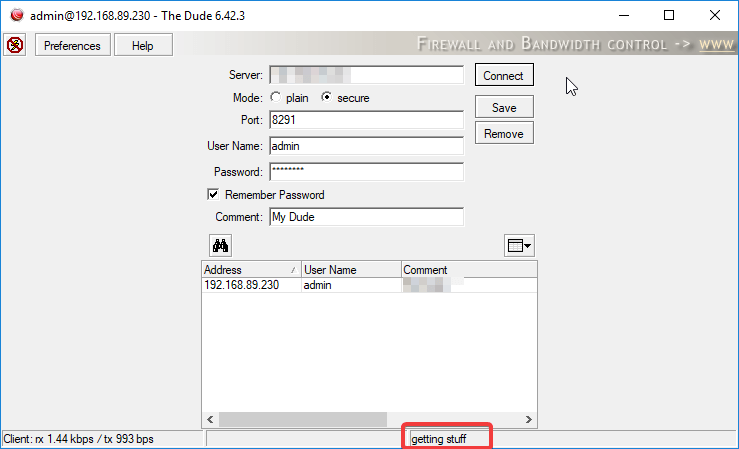
Dude issue after router upgrade with Dude on-board to V 6.42.3: my Dude is connecting for about a minute, then I receive the error:
"server status: db failure: database disk image is malformed: stopped"
First of all, the Dude server is installed on an x86 virtual machine.
There is a quick temporary fix: log in using Winbox and go to a new terminal to put the commands.
/dude set enabled=no
/dude set enabled=yes
That will bring Dude to life for another minute in case you need quick access, but the fix is only temporary.
The permanent fix involves downloading "sqlite3" and using a text editor.
Recommended downloads
- sqlite3: https://www.sqlite.org/download.html
Download "A bundle of command-line tools" from the Precompiled Binaries for Windows section. - TextPad: https://www.textpad.com/
My favourite text editor. You may use Notepad++.
Fix procedure (historical data will be gone after fixing the Dude issue)
- On the C drive create the folder "sqlite3" and unpack the files there from the sqlite3 download link listed above.
- Move the 3 unpacked files from their folder to the
c:\sqlite3\folder. - Log in to the Dude server with Winbox and disable Dude with the terminal command
/dude set enabled=no - Go to Files, right click on the dude.db file and select download. The destination should be your
c:\sqlite3folder. - Open a command prompt as administrator and navigate to your folder with the
cd c:\sqlite3command. - Run the commands:
sqlite3.exe dude.db
pragma integrity_check;
vacuum;
At this stage you will probably see errors like: Error: "database disk image is malformed"
.output dude.sql
.dump
Check your sqlite3 folder: you should see a dude.sql file there, much bigger than the database file. At this stage we can exit sqlite3:
.exit - Rename "dude.db" to "dude.db.old" in the "sqlite3" folder to make sure you have a copy.
- Log back in to the Dude server with Winbox and delete the "dude.db" file from the "dude" folder.
- In the terminal use these commands to recreate an empty database:
/dude set enabled=yes
/dude set enabled=no
Download the new dude.db file to the sqlite3 folder, then delete it from the router, because we will need space for the new database file later. - Open dude.sql in your favourite editor and delete all lines except the ones that start with:
INSERT INTO objs
Save the file as objs.sql - Go back to the command prompt window, same as at the start, and use the commands below.
sqlite3.exe dude.db
pragma integrity_check;
vacuum;
This time there should be no error because we use a clean database.
delete from objs;
.read objs.sql
.exit
Final steps, which will bring your Dude server back to life
- Upload the "dude.db" file to your router by going to the "Files" option in Winbox and pressing the "Upload…" button.
Move the file to the dude subfolder, otherwise it will not work. (I sort files by type and move the file over the yellow dude folder.) - In the terminal type the command
/dude set enabled=no
Your Dude software should work now as expected. I do not see historical outages but map backgrounds are still working.
For more MikroTik scripts see MikroTik useful scripts and commands.
Still stuck? Sign in to open a case or call +353 85 134 4444.